Mastering Daz Studio Content
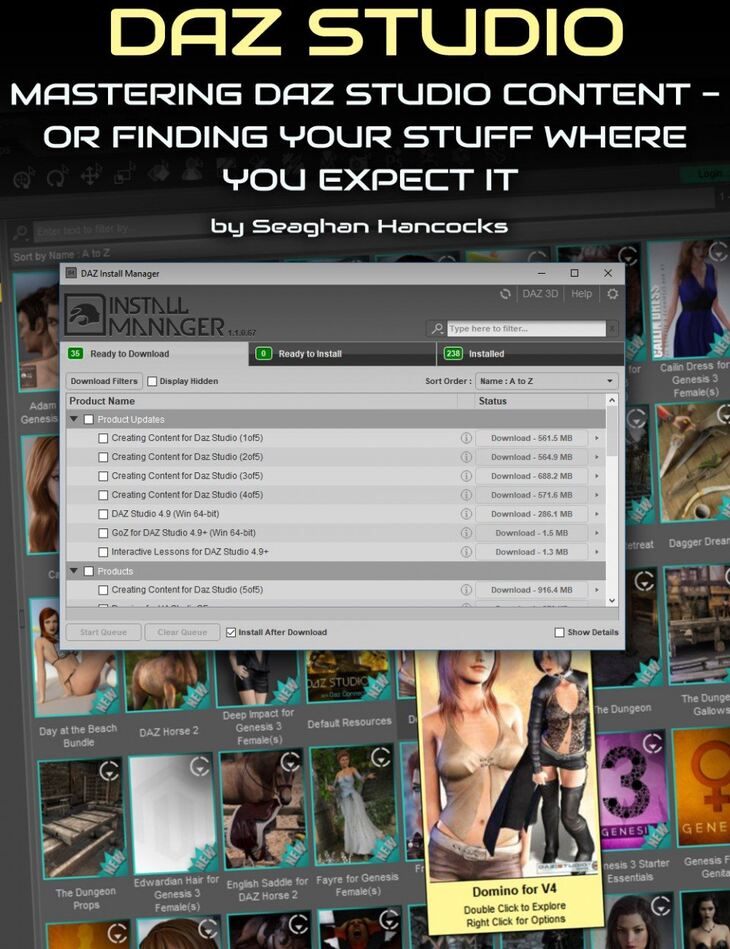
From Cgan Digital Art Live comes Mastering Daz Studio Content, a tutorial available on Daz 3D. Inside the archive you get 40 items, including Contents: 00:00:00 Intro and Copyright, 00:03:05 Seaghan Overview, 00:04:47 Network Configurations.
This tutorial helps give you mastery over your Daz Studio content. Is the state of your Daz content a little like your basement, a little jumbled and out of control? Seaghan Hancocks take you through some vital steps and understanding to improve your organisation and assists in having your content workspace look spick and span! Tutorial running time : 122 minutes Includes Indexed Tutorial, allows you to click and jump to key points in the video. PDF of time index of content. Content includes… -The Daz Install Manager (DIM) and the Content Manager The DIM and the DS Content Manager are meant to work in concert with each other, but when to use which and what about those local zipped files you have? Also, it’s important to ensure that your Content Manager is looking where you expect for your content. – How to Set up a local server Local servers can free you from your desk or office. If you have two (or more) computers, it’s frustrating to load content on all devices — especially if it’s a laptop with limited disk space. Loading on a local server allows you the freedom to work where you like and use your other computer to render. – Loading content with the Daz Install Manager The Daz Install Manager is a great tool, but it requires setup and monitoring else you may end up loading where your Content Manager can’t find it. – Cataloguing with the Content Manager Ever been making a scene and think, “all I need is a knife to complete this combat scene” and know you have one, somewhere, but a search for “knife” turns up nothing because the content creator called it a “dirk”? Now, where was that content with the dirk? New in the Content Manager is the ability to organise your content where it makes sense to you. For example, the default folder for base characters is “People” and I prefer “Figures” because I like to store all base “figures” in the same location. A horse is a figure but will not reside in the “People” directory but it can in my Figure directory. We’ll show you how you can create your own structure that makes sense to you and your workflow. How to Create In Folder Instructions All content comes with README files, that may, or may not be read, at least once. If you’re like me, you might remember something “odd” about certain content pieces but I dislike having to leave my workflow to find the README, not to mention, I might not remember this was some quirk with this product. The solution… put the instructions right in the folder with the content and if necessary, you could even link to the README so you’re not spending time searching for it! We’ll show you how! And more….
What’s included
- Contents: 00:00:00 Intro and Copyright
- 00:03:05 Seaghan Overview
- 00:04:47 Network Configurations
- 00:07:19 Software Required and Where to Get It
- 00:08:44 Note about Zone Alarm and Firewalls in General
- 00:09:54 PostgreSQL
- 00:11:12 Seaghan’s Computer Configuration
- 00:12:19 1st Q&A
- 00:14:39 Installation Paths and Specifying them
- 00:17:12 Intermediate Directory for Installing Content either through DIM or Zipped Files
- 00:18:27 Eg. Loading to the Server
- 00:22:36 Refreshing the DB
- 00:26:10 Loading Content from the Daz CMS
- 00:31:34 Loading Zipped Files
- 00:33:09 Organizing your Readme’s
- 00:37:29 2nd Q&A
- 00:40:55 Software “gotcha’s”
- 00:42:39 The Default Category Listing
- 00:45:19 Creating your Own Categories
- 00:46:25 Moving Content to your Own Categories
- 00:47:31 Appending Relevent Model References
- 00:49:34 Example: Categorizing the Corset
- 00:51:26 Linking to the Readme from within Your Categories
- 00:55:48 3rd Q&A
- 01:01:55 Testing your Categories
- 01:02:49 Adding Production that are Images or Photoshop files to your Categories
- 01:07:27 4th Q&A
- 01:11:32 Seaghan’s Product Naming Convention (for zipped file storate)
- 01:14:19 Backup and Duplication of Categories
- 01:16:52 Importing your Categories
- 01:17:29 What to do when Things Go Wrong
- 01:19:56 DS Icon Colour Meanings
- 01:21:55 Final Q&A
- 01:23:35 Lost and Found Question
- 01:30:08 Can Two Computers Share Content Question
- 01:32:17 Smart Content and Old Content Question
- 01:32:52 Does Old Content go in the Lost and Found Folder Question
- 01:35:06 Condense DB Question
- 01:40:12 Greyed out icon question
- 01:55:55 End
Specifications
- Source: Daz 3D
- Software / install: DIM Manual Install
- SKU: 46801
- Artist: Cgan Digital Art Live
Download links for 3 mirrors are listed below.